Document Group Codes
Important
To use this functionality in a Business Central Production environment a subscription for the Convenient Comments Pro product is required.
You can test out this feature for free in a Business Central online Sandbox environment.
The Document Group Codes feature allows you to mark comment lines with a Document Group Code so that you can specify on which document report layouts the comments should be visible (e.g., only on sales order confirmations).
This works seamless and out-of-the-box when you are using the Apportunix Document Creator report objects.
Setup
You can set up the Document Group Codes feature via the Convenient Comments Setup page.
On the setup page, invoke the Document Groups action to open the Document Groups page which allows you to configure which document group codes should be available and what each of them are intended for.
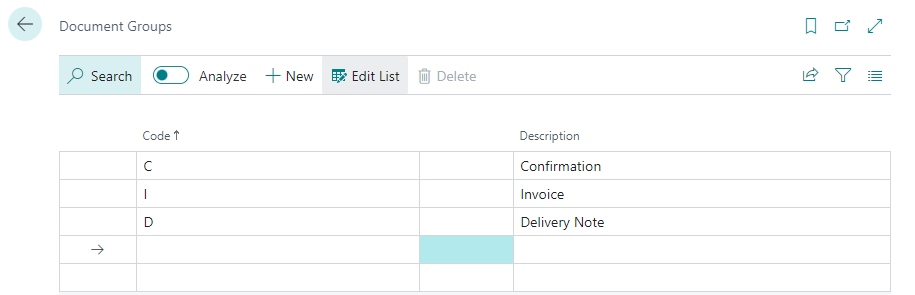
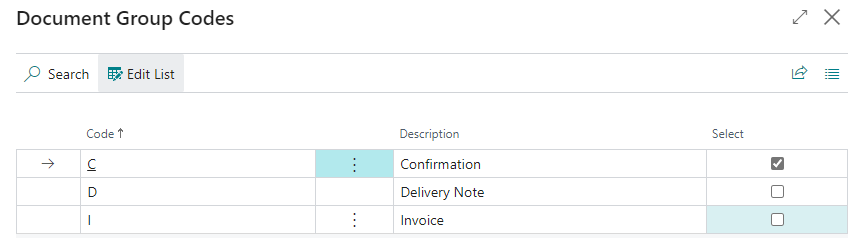
The Code of a Document Group has to be a one-character code. As shown in the example, you can define a code for each type of layout where you want to display the comment lines on.
The next step in the configuration is to define which code corresponds to which layout.
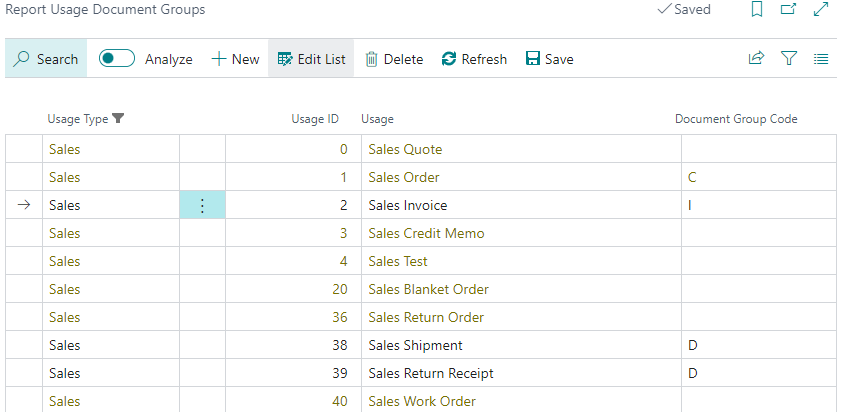
To configure this, open the Convenient Comments Setup page and invoke the Usage Documents Group action to open the Report Usage Document Groups page which allows you to map a document report usage to one of the valid Document Group Code values you set up earlier.
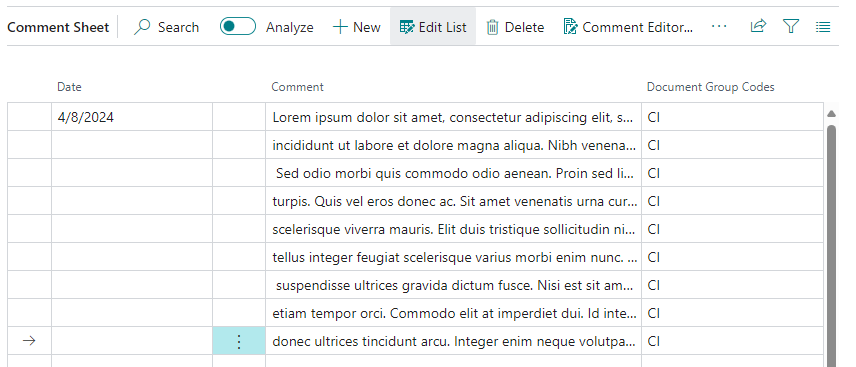
Now, when you enter new comment lines in Business Central (e.g., via the Comment Sheet page), you can use the Assist-Edit ()-button of the new Document Group Codes field to define for which document types the comment should be visible.
Note that you can select multiple codes in this page. For instance, when you want the comments visible on the Order Confirmation and on the Invoice, but not on the Delivery Note, you can select both the C and I document group codes.
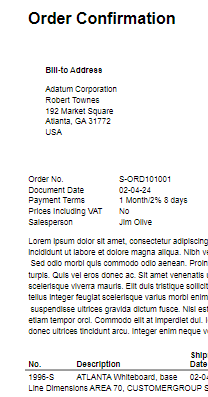
When you now print the Confirmation, the comments will be shown:
Usage without Apportunix Document Creator
The Document Group Codes feature is integrated on all Apportunix Document Creator report objects that have comment lines in the dataset. However, it is also possible to use this feature's functionality for Microsoft's or custom report objects and their report layouts.
In most standard Microsoft layouts, the comment lines are not part of the dataset. Whenever you have extended these datasets and created your layouts, you can still use the Document Group Codes functionality, but to do so, you will have to create an extension with a dependency on the Apportunix Bridge app.
Let's go through the steps, one by one:
-
Update the
app.jsonmanifest and a new dependency to thedependenciesproperty:{ "id": "b5ce5789-b419-4fd4-80d3-abddadf4995f", "name": "Bridge", "publisher": "Apportunix", "version": "1.12.0.0" } -
In your report object(s) add the following global variables:
var BRGCommentLines: Codeunit WSB_BRGCommentLines; IsConvenientCommentsDocumentCommentsFeatureEnabled: Boolean; -
In your report object(s) add the following code to the
OnInitReporttrigger:IsConvenientCommentsDocumentCommentsFeatureEnabled := BRGCommentLines.wgFncIsCOCDocumentCommentsFeature(); -
In your report object(s) add the following code to the
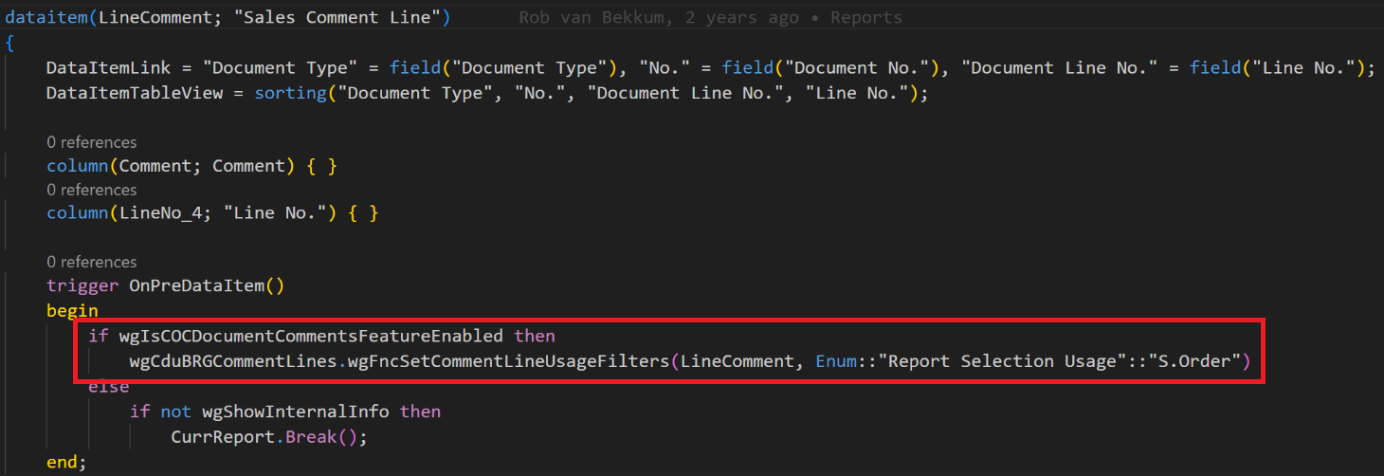
OnPreDataItemtrigger of yourComment Linedata item(s):if IsConvenientCommentsDocumentCommentsFeatureEnabled then BRGCommentLines.wgFncSetCommentLineUsageFilters(MyCommentLineDataItem, Enum::"Report Selection Usage"::MyDocumentReportUsage)An example in a Sales Order Confirmation report object definition: